

Product Support
ActiveDefender User Guide
Step-by-step instructions for using ActiveDefender
5. Lower Menu

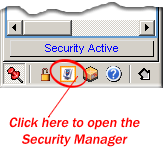
You will find six (6) buttons at the lower end of your ActiveDefender main console window. The six buttons are defined below:
Always on Top
The first button (the red tack) will toggle between two settings; your ActiveDefender always being above other windows or not.
Internet Lockdown
Clicking this will initiate an immediate Internet Lockdown (see Internet Lockdown options).
Open Security Manager
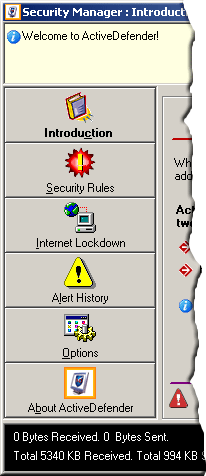
Click this to open the Security Manager window. With the Security Manager, you will gain access to an array of configurable options. See Security Manager for more details.
Special Offers
As an Ascentive customer, you are privy to special discounts and customer-only offers. Click this button to check out which offers are available to you!
Help
If you get stuck, click on this button to access our online support area. Hey, you're here right now! Besides step-by-step guides, you can also read about special tips or contact Ascentive customer support representatives.
Dock to Right
The “arrow” button will dock your main ActiveDefender console window to the bottom-right of your screen. Most users find that it is easier to keep an eye on ActiveDefender's alerts from this location while browsing the Internet.

ActiveDefender: 1.0 Revision #92
Installer size: 6.30 MB
Latest Release: March 27, 2006
Buy ActiveDefender