


Current Version
ActiveDefender: 1.0 Revision #92
Installer size: 6.30 MB
Latest Release: March 27, 2006
Product Support
Downloading ActiveDefender
Note:
This example shows how to download the program ActiveSpeed 7.0.
However, the same methods can be used to download any Ascentive Product!
- On the screen with your purchase information and order reference number, click on the button that reads “Click here to download the product you ordered!” You will be transferred to the Ascentive Download Center using a non-secure connection for maximum download speed. No personal information will ever be transmitted at this site.
Note:
If you need to find your Download Center, just click here and use your order number and download code (found on your receipt) to gain access.
Don't worry if you see a security dialog box such as the one below.
During the download process, we assure you that none of your personal information is being sent or received.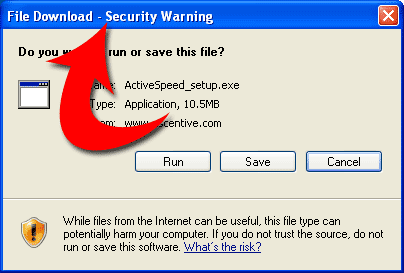
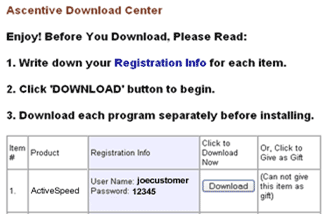
- After reading the information at the Download Center, click the Download button. If you have ordered other software, you will see a download button for each program. You should download each software package separately to avoid errors.
- Be sure to write down the registration information. This will be the username and Password you chose when you placed your order. You will need them to sign in to the subscription.
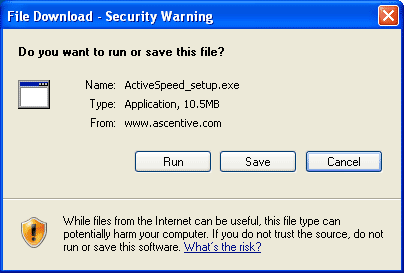
- After you click the Download button, the following dialog box will appear asking if you want to run or save the file. Select the “Save” button to to start your download.
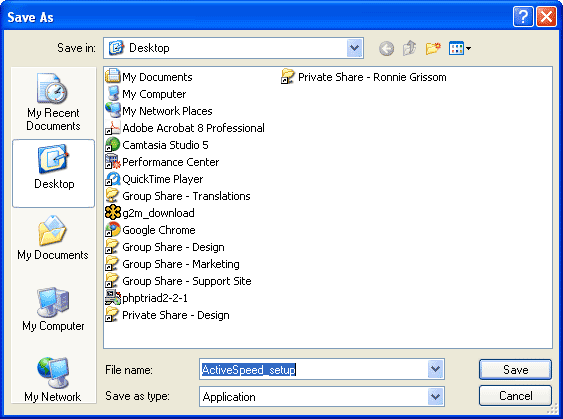
- After you click the “Save” button, the following dialog box will appear asking where you want to save the program. We recommend that you select to save the program to your Desktop for ease in locating the file after download is complete. To do this, click on the drop down menu, click “Desktop.” When you have selected your download location, click the “Save” button.
- You can see that the file is downloading when this dialog box appears. We recommend that you uncheck the box next to: “Close this dialog box when download completes” to locate the file when the download is complete.
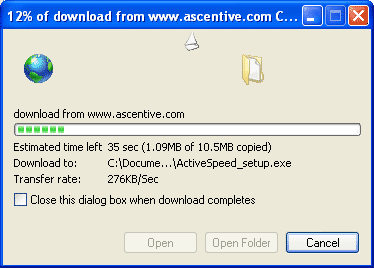
- Once the file has completely downloaded, you will see this dialog box appear from your screen.
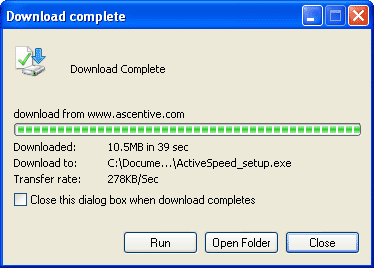
Note:
If you cancel the download before you see this screen or the download seems to happen instantly, you will have downloaded an incomplete file and will need to try again. You can verify that you have a complete copy before closing your browser. To do this, find the program file on your machine, right click on the file and select “Properties” - If you have successfully downloaded, you are now ready to install the software on your computer.
Clicking on the “Run” button will allow you to begin installing your software.Note:
If your connection is disconnected or you manually interrupt the the download before it has completed, you can use the web link included in your order confirmation email to try again. You will need your reference number to do this.If you have successfully downloaded the software the Download Center will indicate that “According to our records, you have successfully downloaded the Ascentive software you ordered.” If you are unable to download ActiveSpeed, please see this page for additional assistance.

